TMHue: a real color picker for Windows
Too lazy to read? ChatGPT them
Reading time: 7 minutes
The problem behind the product
Some tasks look trivial until you actually have to do them. I care a lot about building elements that look good and follow solid UX design practices - it comes with the job - and in that process it's common to need to copy a specific color from some visual reference.
Picture this: you're tweaking a layout, you spot a great color somewhere - a website, an image, an old screenshot - and you just want the HEX or RGB code for it. Sounds familiar?
How I used to do it:
Take a screenshot, paste it into PowerPoint, and use the color picker from there. Or install a browser extension, which was buggy or froze half the time. Not to mention the "free" apps stuffed with ads I tried. The result: pure frustration. All I wanted was to hit a shortcut, click the color, and move on with my life.
That frustration is exactly what pushed me to build my own color picker. No fuss. No extra buttons. Fast, light, and practical. That's how TMHue was born.
The idea was always to keep the scope intentionally small.
Understand all the features
1. Capture anywhere on the screen
The keyboard shortcut is customizable and activates capture mode at any moment, even with another window in focus. By default:
- CTRL + ALT + T: Activates color capture mode
- CTRL + ALT + O: Opens the app interface
- CTRL + ALT + K: Opens the contrast (WCAG) interface
If you'd rather not use shortcuts, you can also capture by clicking the "Capture a color" button inside the app itself.
2. A magnifier to help with precision
During capture, a magnifier window shows the pixel under the cursor in real time. It sounds small, but it makes a difference: without it, it's easy to miss the pixel by one or two and grab a slightly different color than the one you wanted.
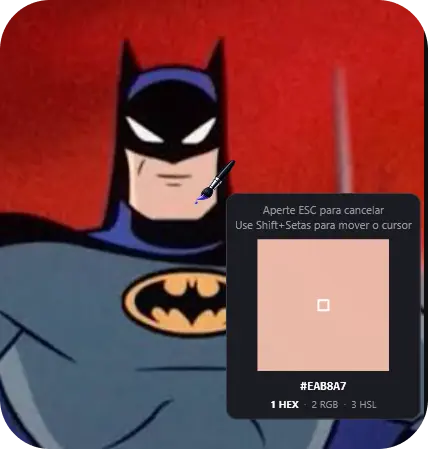
In practice: with capture active, the mouse cursor turns into a brush and a small preview zooms into the spot, showing the color in real time. Once you click, a notification in the center of your screen confirms the color was copied and is ready for CTRL+V.
Precise keyboard navigation
While capturing with the color picker, the arrow keys move the cursor one pixel at a time. With Shift + Arrows, the cursor jumps to the next detected color change in the chosen direction. The magnifier also shows a quick hint during capture:
Arrows: move 1 px · Shift + Arrows: next color change
Choose the format before copying
You can now set the color format during the capture itself:
- 1 — HEX
- 2 — RGB
- 3 — HSL
The magnifier shows the shortcuts right below the color value and highlights the active format. In settings, you can also set which format is used by default for future captures.
3. Area sampling, not just a single isolated pixel
I built this feature for the perfectionists out there. Has this ever happened to you: you capture the same color twice and get X once and Y the other time?
That happens when the color picker reads a single pixel, and depending on the image, that pixel can be distorted by compression, anti-aliasing, or a gradient.
In TMHue, that's an adjustable setting: you choose the sample area size, opting between precision (1 pixel) or visual stability (5x5px or 11x11px). This is useful, for example, when capturing colors from textured photos, icons with anti-aliasing, or designs with gradients - where a single pixel might not represent the "real" color of that element well.
Here's how it works:
- Single pixel (1x1): reads exactly the pixel where the cursor is. It's precise, but sensitive to noise - if that specific pixel has a slight variation (from anti-aliasing, JPEG compression, or a subtle gradient), you might capture a "wrong" color that doesn't visually represent the region.
- Area sampling (e.g., 5x5 or 11x11): instead of a single pixel, the app reads a small square of pixels around the cursor and calculates a representative color (median) for that region. This smooths out noise, edges, and color transitions, delivering a more stable result that's more faithful to "what the eye sees".
4. History of recent colors
Your latest captures are saved automatically, without duplicating when you repeat the same color in a row. And if there's a color you know you'll use again later, you can pin it so it doesn't disappear as the history scrolls.
5. Built-in WCAG contrast check
WCAG (Web Content Accessibility Guidelines) is the international accessibility standard that defines, among other things, the minimum contrast between text and background needed for anyone to read content comfortably - including people with low vision.
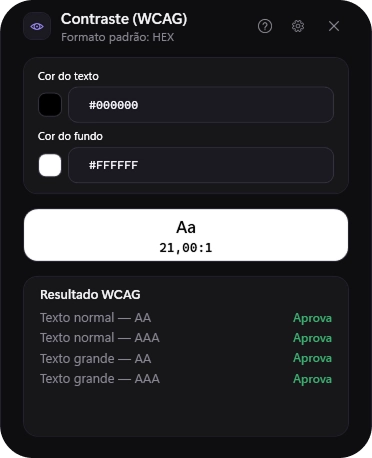
That's why you can now compare a text color against a background color right inside TMHue and check the contrast ratio against WCAG, with results for both AA (the expected minimum standard) and AAA (an extra, non-mandatory level). When a combination doesn't pass AA, the app suggests the smallest adjustment needed to reach it.
6. Color Harmony
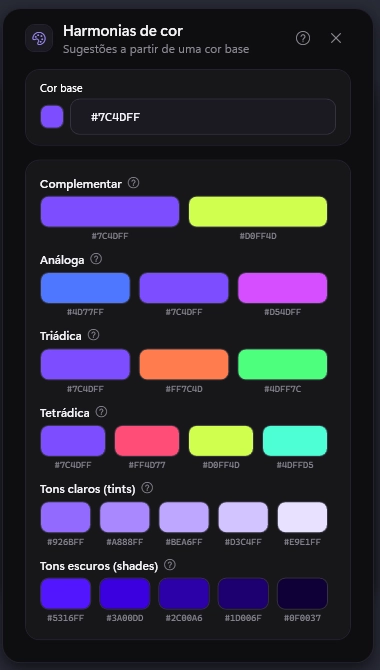
Every strong color has "relatives" - tones that pair with it naturally, following rules that artists and designers have used for centuries (like complementary, analogous, or triadic colors). This feature takes a color you picked and automatically suggests that group of tones that work well together.
In practice: you pick a base color and the tool shows you other colors that go well with it - whether to create contrast (opposite colors that stand out) or a sense of unity (nearby colors that blend smoothly). It's like having a color consultant by your side, without needing to know color theory.
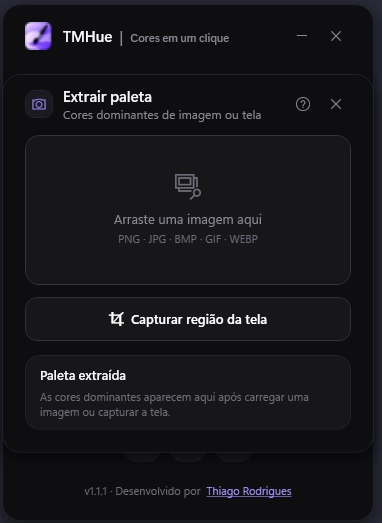
7. Extract Palette
Ever noticed how photos, logos, and illustrations always have a set of colors that "talk" to each other? The extract palette feature analyzes an image and automatically identifies those main colors, handing you a ready-made palette.
In practice: you upload an image - a photo, a design, a visual reference you liked - and the tool identifies the dominant colors in it. It's perfect for when you want to recreate the mood of an image in another project, or simply find out the exact codes of the colors in it.
Together, the two features complement each other: extract palette helps you discover colors from an image; color harmony helps you expand and combine colors from a manual pick.
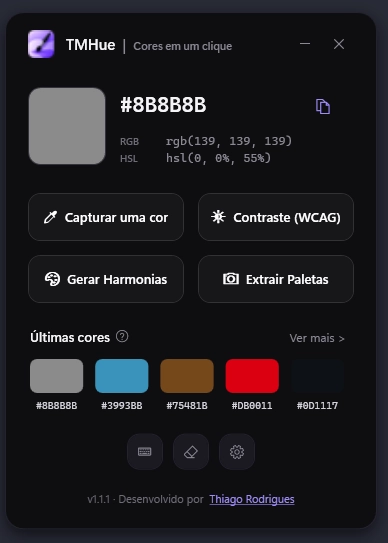
8. Intuitive interface
I went with a minimalist interface, showing the captured color history, the magnifier, and the settings menu: simple and straight to the point.
Check out the other features of the tool:
- Auto-copy: the captured color goes straight to the clipboard, ready to paste wherever you need it.
- System tray: the app runs in the background with a discreet tray icon, without taking up space on the taskbar.
- Start with Windows: optional, for anyone who wants the app always available without opening it manually.
- Single instance: no risk of accidentally opening the app three times and ending up with duplicate processes running.
- Performance: don't worry about it draining your RAM - while open, it shouldn't consume more than 100MB.
- Auto-update: the app updates itself automatically whenever a new version is available. No need to leave the app to do it.
About the architecture
Technical summary of the stack: the app was built in C# and .NET with WPF, using the native Windows API (P/Invoke, GDI, GetPixel) to read the color directly from the screen, without relying on heavy libraries or capturing and saving images.
Architecture decision
The app only reads the pixel while capture is active. It doesn't take a screenshot, doesn't save any image to disk, and doesn't monitor the screen in the background.
The split into three layers follows a well-structured rationale:
- TMHue.Core: holds the business rules with no dependency on Windows
- TMHue.Windows: concentrates everything platform-specific (screen, clipboard, tray, startup)
- TMHue.App: brings both together in a WPF interface with MVVM
In practice, this means the logic for "how to decide which color was captured" doesn't get mixed up with "how Windows sees a pixel".
History and settings are saved as JSON, with a simple but important safeguard: if the file gets corrupted or grows beyond expected, the app backs up what it had and starts fresh, instead of crashing or silently losing everything.
In other words
The hard part wasn't making the app work. It was keeping it small, fast, and always available without weighing down the computer. Simplicity takes work too.
Why this project is open source
There's no hidden paid tier or feature locked behind a subscription - it's a free utility, and anyone can read the code, suggest improvements, or simply build their own version.
I chose to keep it open because it was exactly the lack of a tool like this - light and fuss-free - that pushed me to build the app. It makes sense to give that back to anyone facing the same problem.
Check out the project
This is a free, Open Source project. If you'd like to download the app or take a look at the code, the repository is right below.
Download TMHueGitHub Repository
👇 Enjoyed this content?
If this project helped you in any way, leave a star on the repository and share it with anyone who also needs a lightweight color picker.
Take the opportunity to read more articles here on the blog!
Next step
Liked this project?
Let's build an idea together. Message me so I can understand what you have in mind.